Chemistry content is a special case for AI → DOCX conversion. Even when the text looks correct in a chat UI, a simple paste into Word can flatten subscripts, lose charges, or merge symbols into plain text.
This guide shows a reliable workflow to convert chemistry notation (ions, isotopes, equilibrium indices, units) into a Word document that stays editable and prints well. You can follow along in the AIText2Doc app.
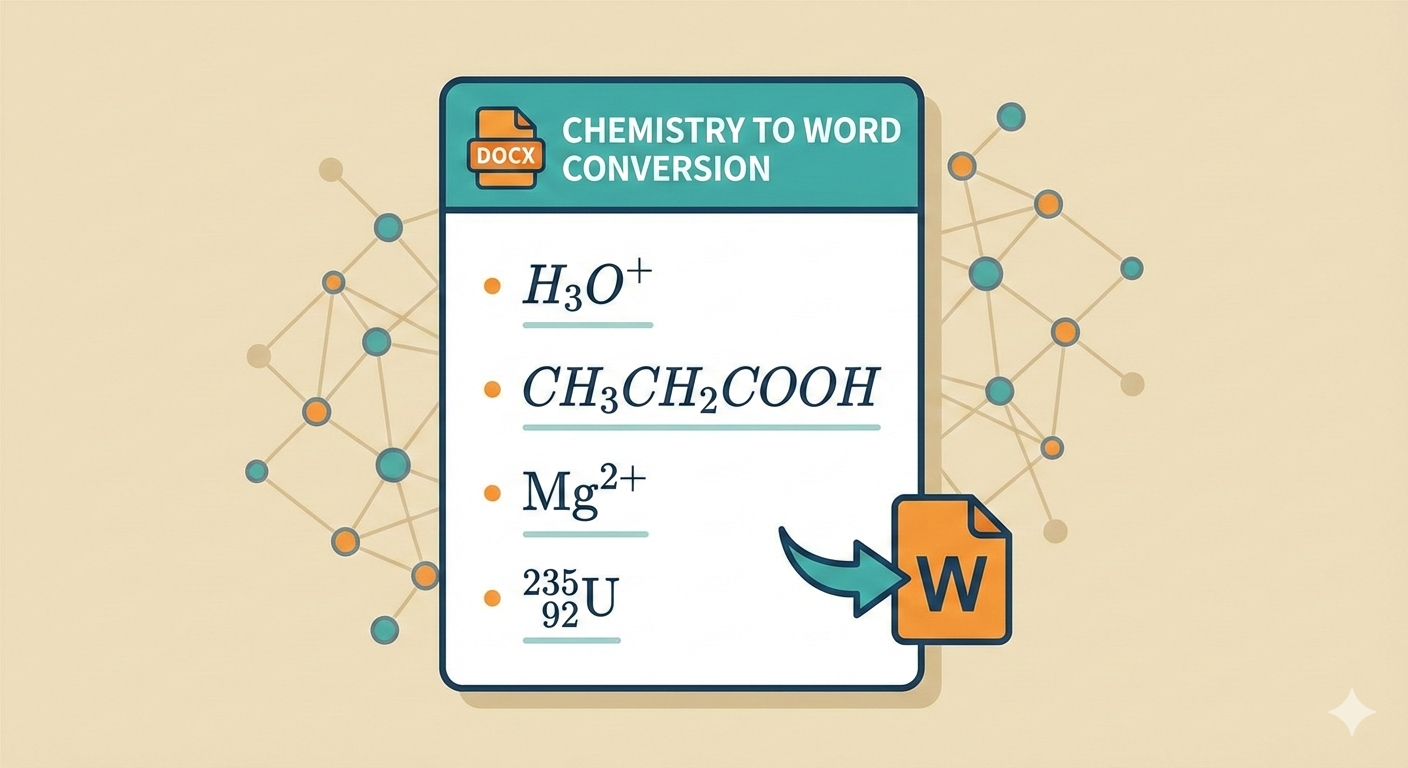
What “good output” looks like in Word
For chemistry worksheets and lab reports, the goal is usually:
- subscripts where they belong:
H_2O,CH_3COOH - charges as superscripts:
H^+,SO_4^{2-},Mg^{2+} - readable equilibrium indices:
[H_3O^+]_{eq} - units that don’t break:
mol·L^{-1},N/kg,S·m^{-1}
In AIText2Doc, equations are exported as Word equations (OMML) inside the DOCX (editable), and the PDF is rendered for printing/sharing.
Copying from AI tools: avoid “looks right, pastes wrong”
Most AI UIs render math using a math engine. What you copy is often:
- plain text with hidden characters
- Unicode superscripts/subscripts that Word treats inconsistently
- partially escaped LaTeX
If your AI tool offers a Copy button, prefer it over manual select-and-copy. Manual selection can introduce invisible characters and line breaks that reduce detection quality.
Recommended input formats (high success rate)
AIText2Doc is designed around the formats that appear most often in AI answers:
- Inline math:
$...$or\(...\) - Display math:
$$...$$or\[...\](or AI-style[ ... ]blocks when enabled)
For chemistry, inline math is usually enough:
- “The ion is $H^+$ and the conjugate base is $A^-$.”
Use display math for longer expressions:
$$Q_{r,eq}=\frac{[H_3O^+]_{eq}[A^-]_{eq}}{[HA]_{eq}}$$
Common chemistry patterns and how to write them
Below are patterns that tend to work well across preview, DOCX, and PDF.
1) Ions and charges
Prefer explicit superscripts:
$H^+$$Mg^{2+}$$SO_4^{2-}$
Avoid ambiguous text like Mg2+ without math delimiters; it may be treated as normal text.
2) Chemical formulas (subscripts)
Use subscripts:
$H_2O$$CO_2$$CH_3CH_2COOH$(or split groups if needed)
If the AI outputs “H2O” without underscores, you can often rewrite it as $H_2O$ before exporting.
3) Isotope notation
Isotopes usually use both superscripts and subscripts:
$^{235}_{92}U$$^{14}_{6}C$$^{1}_{0}n$
If your AI output uses strange separators (for example ^{235}*{92}U), AIText2Doc includes cleanup rules for common copy formats, but you’ll get the best results when you keep a consistent LaTeX-like style.
4) Concentrations and indices
Equilibrium indices are clearer in math mode:
$[H_3O^+]_{eq}$$[CH_3CH_2COO^-]_{eq}$
When you need brackets and indices, keep the whole expression inside the same math delimiters.
5) Units (don’t let commas break them)
In chemistry content, commas sometimes appear as spacing artifacts when copying from AI tools. If you see output like 10,N/kg or 150,J, it usually means the comma was used like a thin space.
Good patterns:
$g = 10\\,\\mathrm{N/kg}$$E = 150\\,\\mathrm{J}$$C = 10^{-2}\\,\\mathrm{mol\\cdot L^{-1}}$
If you don’t want to use \\mathrm{...}, a simpler option is to keep the unit as plain text and only put the math in delimiters:
g = $10$ N/kg
A short checklist before exporting
Before you click download:
- Put each heading on its own line (Markdown
#,##,###). - Keep chemical formulas and charges in math delimiters.
- Use Preview to confirm subscripts/superscripts and fractions.
- If a formula is long, put it on its own line (display math).
If you want a broader workflow for formatting long documents, see:
Troubleshooting
If Preview highlights math in red:
- Try rewriting the formula in simpler LaTeX (avoid custom macros).
- Split one long line into two display equations.
- Enable the MathJax fallback option if KaTeX fails.
If a “worksheet layout” LaTeX block (like \\begin{array}...\\hline) is detected, AIText2Doc will flag it as not supported for export. In those cases, export the text first and rebuild the layout with a Word table.
Regression cases used for this guide
The following cases come from converter bugs reproduced during development rather than from a generic chemistry reference.
Unit spacing after a decimal comma
Source:
(m = 500,g = 0{,}5,kg)
(g = 10,\text{N/kg})
E = 150,J
The expected output keeps 0,5 as a decimal value while removing spacing commas before kg, N/kg, and J. A global comma-removal rule is not acceptable because it would also change real decimal notation.
Left-side isotope scripts
Source:
m\left({}^{2}\mathrm{H}\right)=2{,}01410\ \mathrm{u}The DOCX must display the isotope inside parentheses after m. The mass number belongs before H and Word must not expose an empty equation placeholder. This case is checked separately from the preview because browser MathML and Word OMML build left scripts differently.
Nuclear reaction copied from an AI interface
Source:
{}^{235}_{92}U + {}^{1}_{0}n \rightarrow
{}^{93}_{36}Kr + {}^{A}_{Z}X_1 + 3({}^{1}_{0}n)
This tests left scripts, a reaction arrow, a product with an unknown mass and atomic number, a subscript on X, and a neutron coefficient. Copy artifacts such as ! or * may be present even when the chat interface does not display them.
Reaction quotient fraction
The reaction quotient case in the compatibility matrix tests charges, molecular subscripts, equilibrium indices, brackets, and a structural fraction together. It should be reviewed in all three outputs because a correct linear string is not sufficient if the PDF loses the fraction line.
Reproduce the chemistry tests
Download the AIText2Doc regression pack, paste it into the converter, and check the chemistry section in preview, DOCX, and PDF. If a result differs, reduce the input to the shortest failing expression before contacting support.
The matrix records what is supported today; it is not a claim that every package-specific chemistry command is implemented. Standard LaTeX scripts and \mathrm are safer than specialized package macros.