AI-generated explanations can look finished inside ChatGPT, Claude, or Gemini while still producing a poor Word document. The chat interface renders Markdown and mathematics for the screen. Microsoft Word expects document styles, list definitions, text runs, and native equation structures. A reliable conversion workflow has to bridge those differences rather than simply copy visible text.
This guide documents the workflow used to test AIText2Doc. It is based on representative inputs checked in the browser preview, generated DOCX files, and Chromium PDF output. You can reproduce the examples with the downloadable regression pack and compare current support in the compatibility matrix.
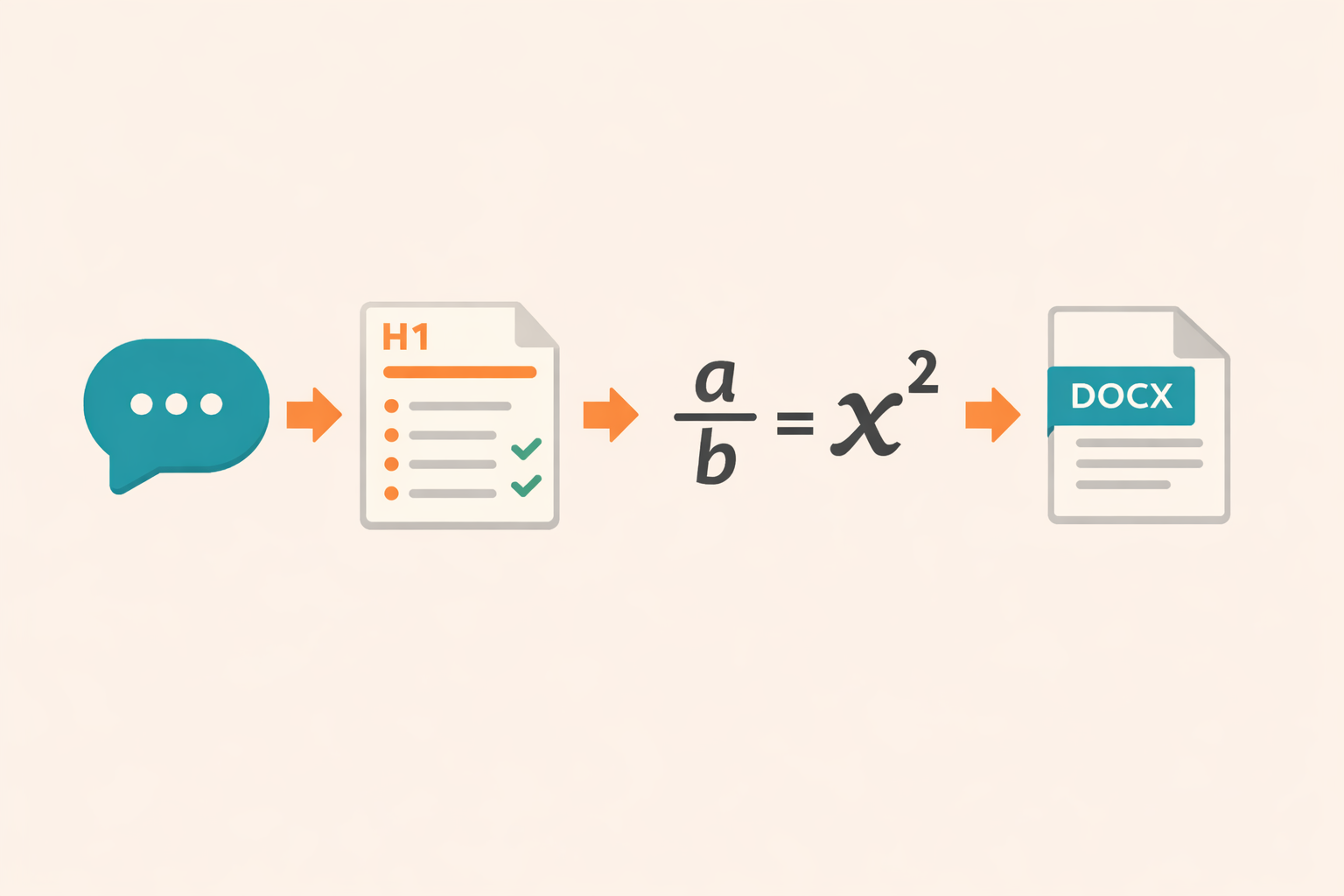
What the converter actually changes
AIText2Doc does not ask an AI model to rewrite your document. It parses the text already in your browser and maps supported patterns into document structures.
The main transformations are:
- Markdown headings become heading paragraphs in the DOCX.
- Markdown bullets and numbered items become Word lists.
- Bold markers become bold text runs.
- Supported LaTeX expressions become native Word equations.
- Ordinary paragraphs remain text and keep their order.
- PDF output is rendered server-side from the formatted result.
This distinction matters for privacy and predictability. DOCX generation happens locally in the browser. PDF generation sends the formatted document to the server temporarily because a headless Chromium process creates the final printable file.
A realistic source document
A useful test should mix structure and mathematics instead of testing one perfect equation in isolation:
# Potential energy

## Definition

A body of mass (m = 0{,}5,kg) is placed at height (h = 30,m).

- Mass is measured in kilograms.
- Height is measured in metres.

[
E_{pp} = m g h = 0{,}5 \times 10 \times 30 = 150,J
]
The expected result is not merely readable text. The heading hierarchy should remain visible, the two items should remain bullets, quantities should not contain unwanted commas before their units, and the display expression should become an editable Word equation.
Step 1: copy the complete AI response
Use the AI product's dedicated Copy button when it is available. Manual selection can omit hidden delimiters, join lines, or insert visual spacing characters. Those changes may not be visible until an equation fails.
Copy the complete response rather than copying each paragraph separately. This preserves heading and list boundaries. Remove only content that clearly belongs to the conversation rather than the document, such as an offer to create another example.
Do not paste confidential, personal, or restricted material into any online workflow without checking the applicable privacy requirements. DOCX conversion is local, but PDF export is server-side.
Step 2: inspect structure before equations
Check the plain document structure first:
- Does each heading begin on its own line?
- Is there a space after each Markdown heading marker?
- Does each list item occupy one line?
- Are paragraph breaks intentional?
- Are code blocks or tables being used only when needed?
A heading such as ## Results has a clear mapping. A visually bold sentence does not automatically mean it should become a heading. Keep semantic structure separate from emphasis.
AIText2Doc currently does not export Markdown tables, embedded images, or footnotes. Convert the surrounding text first and build the final table in Word. This produces a more editable result than forcing a visual LaTeX array into an equation object.
Step 3: identify equation boundaries
AI tools commonly use $...$, $$...$$, \(...\), \[...\], and standalone bracket blocks. Keep short variables and quantities inline. Put long fractions, reaction quotients, and multi-part equations on their own lines.
Parentheses are ambiguous because ordinary prose also uses them. AIText2Doc applies heuristics to detect equation-like parentheses while protecting long sentences. Review every automatically detected parenthetical expression in the preview. Explicit delimiters are safer when you control the source.
Step 4: preserve units and decimal commas
French-language scientific material often combines decimal commas with copy artifacts that also use commas as spacing.
For example, (m = 0{,}5,kg) should produce a decimal comma in 0,5 but no separator before kg. Likewise, E = 150,J uses the comma as visual spacing before the unit.
AIText2Doc removes common unit-spacing artifacts while retaining decimal commas. This cleanup is deliberately narrow because removing every comma inside mathematics would damage coordinate pairs, function arguments, and real punctuation.
The current regression pack includes kilograms, joules, metres, N/kg, mol·L^{-1}, and conductivity units.
Step 5: preview before downloading
The preview is a validation stage, not decoration. Check one example from each category present in the document:
- One heading.
- One bullet or numbered item.
- One inline equation.
- One display equation.
- One expression with subscripts or superscripts.
- One chemistry or isotope expression, when applicable.
Failed expressions are highlighted. Unsupported worksheet arrays are replaced with a clear warning and block export. This is preferable to producing a DOCX that appears successful while containing malformed equation objects.
The preview can differ slightly from Word because the browser and Word use different rendering engines. Structural properties—fractions, scripts, equation boundaries, and list types—should remain consistent.
Step 6: choose DOCX or PDF for the right purpose
Choose DOCX when the document will be edited, reviewed, translated, or restyled. Native Word equations remain editable, headings can be used in a table of contents, and collaborators can use comments or Track Changes.
Choose PDF when the document is ready to print or distribute without editing. The PDF workflow uses Chromium because browser MathML rendering preserves fractions and scientific notation more reliably than a simple text-to-PDF conversion.
For important work, download both files. Treat the DOCX as the editable source and the PDF as the distribution copy.
Step 7: perform a Word-specific review
Open the DOCX and verify:
- Heading levels are consistent.
- Bullets are bullets rather than numbers.
- Equations can be clicked and edited as Word equations.
- Isotope numbers appear before the element without empty placeholder boxes.
- Fractions use a visible fraction bar.
- Long equations fit the page or wrap acceptably.
- Document language and proofing settings are correct.
Word normally uses Cambria Math for equations. Apply document branding to paragraph styles first and leave mathematical runs under Word's equation formatting unless you have tested an alternative.
Common failures and what they reveal
Raw LaTeX appears in the output
The expression was not detected or contains unsupported syntax. Check delimiters and simplify custom commands. Standard commands such as \frac, \sqrt, scripts, Greek letters, and arrows are safer than package-specific macros.
A whole sentence becomes an equation
The source used parentheses around prose containing small expressions. Keep the sentence as text and delimit only the mathematical fragments. Current heuristics protect long prose, but preview review is still required.
A comma appears before a unit
This is usually an AI copy-spacing artifact. Compare the input with the tested unit patterns in the compatibility matrix. If the unit is uncommon, remove only the spacing comma and keep decimal notation intact.
A worksheet layout is blocked
LaTeX array and hline structures can describe presentation rather than one mathematical expression. Build the final arrangement as a Word table after converting the surrounding content.
Reproducible quality checklist
Before export:
- Use the AI tool's Copy button.
- Remove conversational prompt residue.
- Keep headings and list items on separate lines.
- Use explicit equation delimiters.
- Review unit commas and decimal commas.
- Confirm unsupported layout warnings are absent.
After export:
- Open the DOCX rather than trusting the download alone.
- Edit one equation to confirm it is native.
- Check a fraction, script, and list.
- Compare PDF pagination with the DOCX.
- Save a known-good input when reporting a problem.
Why this workflow is project-specific
The workflow is based on failures observed while building the converter: bullets becoming numbered lists, isotope placeholders, unit commas, prose misdetected as mathematics, missing PDF fraction bars, and unsupported operation arrays. Those cases are more useful than a generic paste-and-download instruction because they show where conversion can fail and how to verify it.
For current tested status, use the AIText2Doc compatibility matrix. For equation internals, continue with LaTeX, MathML, and native Word equations. For chemistry, use the chemistry and isotope guide.