AI tools can display beautifully formatted equations in their UI, but when you copy the answer into Word you often get a mess:
- fractions turn into
a/b - subscripts disappear (
H2instead ofH₂orH_2) - exponents become normal text (
10-3instead of10^{-3}) - random commas or strange invisible characters appear
This guide explains why it happens and how to fix it with a repeatable workflow. The goal is simple: export a DOCX you can edit in Word, and a PDF you can share or print, while keeping equations readable and correct.
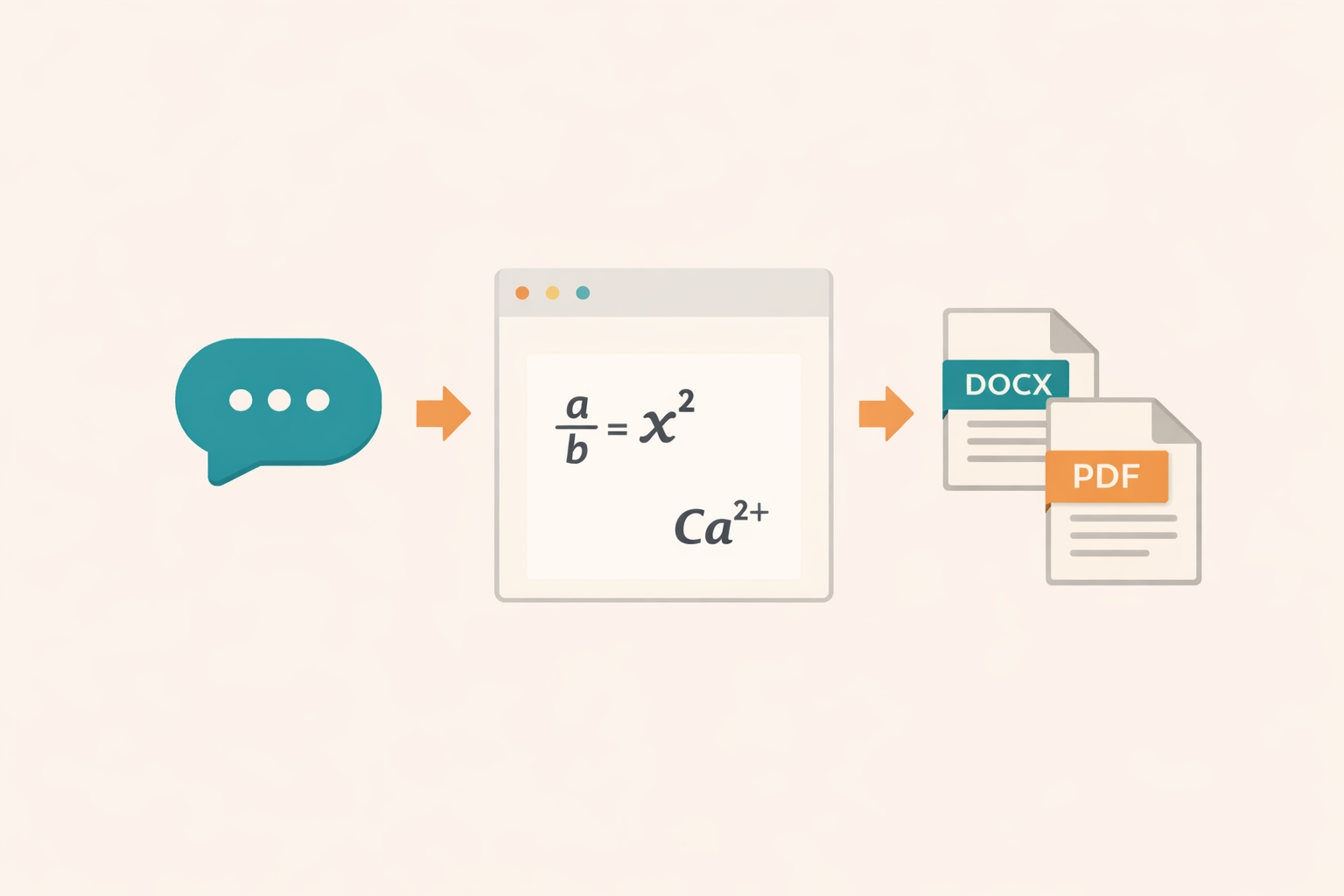
Try the steps below directly in the AIText2Doc converter app. For a broader conversion workflow (headings, lists, and formatting), see How it works.
Why AI equations break when you copy/paste
Most AI tools render math in the chat UI using a math engine. What you copy is rarely the same as what you see. You might be copying:
- “display text” that contains hidden characters
- Unicode symbols that look correct but behave differently in Word
- partially escaped LaTeX that needs boundaries (
$...$,\(...\),\[...\]) to be detected reliably
On top of that, Word has its own equation system (OMML). If Word doesn’t recognize the math as an equation object, it falls back to plain text and you lose structure.
AIText2Doc is designed specifically for this gap: it converts AI-style math into Word-friendly equations and gives you a preview to validate before export. See Features for what the converter supports today.
Step 1: Copy the AI output the “safe” way
When the AI tool provides a Copy button, use it. Manual select + copy can:
- lose line breaks
- change whitespace
- insert invisible formatting characters
If the output is long, copy one section at a time so you can spot where things go wrong.
Hidden characters and “weird symbols” (what to do)
If you ever see a formula that looks correct in the AI UI but becomes “strange” after pasting (missing minus signs, odd spacing, random commas), the cause is often a hidden or non-standard character.
Common culprits:
- Non‑breaking spaces: looks like a normal space but behaves differently in parsing and wrapping.
- Unicode minus (−) vs hyphen-minus (-): visually similar, different character.
- Smart quotes: “ ” instead of " ".
- Zero-width characters: invisible, but they can split tokens in a way that breaks math detection.
Fast fixes:
- Re-copy using the AI tool’s Copy button.
- If the issue persists, paste the text into a plain-text editor first (to remove formatting), then paste into the converter.
- Replace suspicious symbols manually when you spot them (e.g., replace
−with-in equations).
This is not about perfection; it’s about removing the one character that ruins the whole equation.
Step 2: Decide what is inline math vs display math
The biggest improvement you can make is separating “small math inside sentences” from “full equations”.
Inline math (short)
Use inline math for variables and short expressions:
$E = mc^2$\(\Delta E_{pp} > 0\)$x \in \mathbb{R}$
Display math (full equations)
Use display math for anything you would want centered, or anything long:
\[
E_{pp} = mgz = 0{,}5 \times 10 \times 30 = 150\ \mathrm{J}
\]
Practical tip: if the equation looks “busy” inside a sentence, make it display math. Your preview becomes easier to validate and the export becomes more stable.
Step 3: Fractions (the #1 PDF/DOCX pain point)
Fractions are a common reason equations become linear in the output.
Prefer real LaTeX fractions
Instead of:
$Q = (a/b) \cdot c$
Use:
$Q = \frac{a}{b}\cdot c$
Or as display math:
\[
Q_{r,eq}=\frac{[\mathrm{H_3O^+}]_{eq}\,[\mathrm{CH_3CH_2COO^-}]_{eq}}{[\mathrm{CH_3CH_2COOH}]_{eq}}
\]
Keep the fraction boundaries clean
Avoid mixing punctuation inside the math:
- Don’t write
$... = \frac{a}{b},$if you can help it. - Prefer
$... = \frac{a}{b}$,(comma outside) or rephrase the sentence.
This small habit reduces “stray symbols” that can appear in the preview, the DOCX, or the PDF.
Step 4: Exponents and subscripts (math + chemistry)
Word equations are sensitive to ambiguous exponent/subscript patterns. The safest habit is to use braces.
Exponents
Good:
$10^{-3}$$x^{2n+1}$
Risky:
$10^-3$(may be read inconsistently)$x^2n$(is itx^2 norx^{2n}?)
Subscripts
Good:
$\lambda_{(H_3O^+)}$$\mathrm{H_2O}$
Risky:
$H_2O$(might becomeH₂Ocorrectly, but adding\mathrmreduces ambiguity for chemistry)$H_2(g)$inside busy text (prefer display math for reaction lines)
Step 5: Chemistry reactions and ionic charges
Chemistry content is often copied from AI tools for exercises, worksheets, and corrections. The most reliable approach is to put full reactions in display math.
Example:
\[
\mathrm{Mg}(s) + 2\,\mathrm{H}^{+} \rightarrow \mathrm{Mg}^{2+} + \mathrm{H}_2(g)
\]
Why this works better:
- the arrow is treated as a math operator
- charges stay as superscripts
- subscripts like
H_2stay attached to the symbol
Step 6: Isotope / nuclear notation
If you work with nuclear equations, you will often see patterns like:
{}^{235}_{92}U{}^{1}_{0}n
These should be treated as math (inline or display). For full reactions, use display math:
\[
{}^{235}_{92}\mathrm{U} + {}^{1}_{0}\mathrm{n} \rightarrow {}^{93}_{36}\mathrm{Kr} + {}^{A}_{Z}\mathrm{X} + 3\,({}^{1}_{0}\mathrm{n})
\]
If the AI output includes placeholders like A and Z, keep them as symbols. The goal is layout fidelity; you can fill values later if needed.
Matrices, systems, and aligned equations (keep it simple)
AI tools sometimes generate advanced LaTeX environments (alignment blocks, multi-line systems, matrices). These are valid LaTeX, but they can be harder to convert reliably if they are deeply nested.
If you need stability more than “compact textbook style”:
- Convert aligned derivations into multiple display equations, one per line.
- Add short explanation text between steps instead of forcing alignment.
- Keep matrices small and avoid embedding lots of text inside them.
Example (stable approach):
\[
a = b + c
\]
\[
b = d - e
\]
Yes, it’s less compact than a single aligned block, but it is easier to validate and it tends to export more reliably.
Step 7: Units and “comma decimals” without breaking equations
In French-style math, decimals are written with a comma: 0{,}5. That’s normal.
The tricky part is when a comma is also used as a separator in equations, or when the AI output inserts commas around units.
Practical rules:
- Keep
0{,}5inside math (it renders as0,5). - Put unit separators inside the math when you want them to behave like a unit:
150\ \mathrm{J}10\ \mathrm{N/kg}- If you see an extra comma before a unit, rewrite the unit spacing:
- prefer
10\ \mathrm{N/kg}over10,\mathrm{N/kg}
When to use the MathJax fallback (only if needed)
Most school and college equations work with a lightweight math renderer. Very complex expressions may still fail due to uncommon commands or heavy nesting.
If a formula doesn’t render in the preview:
- First, simplify it (split into two display equations, add braces, remove extra text inside math).
- If it still fails, enable the MathJax fallback option in the converter.
Use fallback as a tool, not a default. Your best results come from clear boundaries and readable equations.
Step 8: Validate with the preview (don’t skip this)
The preview is your fastest “quality gate”. Before exporting:
- scan for any equation that looks linear when it should be structured
- check exponents/subscripts on a few representative formulas
- confirm lists and headings are correct (it matters for the final DOCX layout)
If something is wrong, fix it in the input and preview again. Editing in Word is possible, but it is usually faster to correct boundaries and re-export.
Step 9: Export DOCX (editable source)
Use the DOCX when you want editing:
- add a title page
- adjust styles (Heading 1/2/3, Normal)
- correct small typography issues
- add tables or diagrams later
After opening the file in Word:
- click into a couple of equations to confirm they are editable equations
- verify that chemistry subscripts (like
H_2) are still subscripts - check that fractions render as fractions, not
a/b
Step 10: Export PDF (share/print)
Use PDF when you want a stable printable version:
- homework submissions
- worksheets for printing
- sending to students who don’t have Word
The PDF should match the preview closely. If the preview is correct but the PDF is not, focus on:
- fraction layout
- very long lines (they may wrap awkwardly)
- extreme nesting in LaTeX (split into two display equations if needed)
A quick “fix list” you can reuse
When a formula doesn’t look right, try these in order:
- Convert it to display math (
\[...\]) and preview again. - Replace
a/bwith\frac{a}{b}. - Add braces to exponents/subscripts (
^{...},_{...}). - Move punctuation outside the math block.
- If it is a reaction or a long expression, split it into two display equations.
Mini FAQ (common questions)
“Why does Word show plain text instead of a real equation?”
Usually because the math was not converted into a Word equation object. Export DOCX from the converter (don’t paste raw AI text into Word) and verify in the preview that the equation renders correctly before exporting.
“My PDF looks different from the DOCX. Is that normal?”
Small differences can happen because PDF rendering is “print layout” and long lines may wrap differently. If the preview looks right but the PDF layout looks off, prefer display math for long expressions and avoid extremely long single-line formulas.
“Do I need perfect LaTeX?”
No. You need clear boundaries and consistent structure. A readable equation with correct exponents/subscripts is better than a “perfect” LaTeX expression that is too complex to validate.
“What if my AI output has lots of normal parentheses?”
Disable aggressive parenthesis-math detection first, then re-enable only if you truly need it. This avoids converting regular sentences into “math text”.
Example: from AI answer to clean Word/PDF
Input (typical AI output style):
On prend (g = 10,\\text{N/kg}).
[
E_{pp} = mgz = 0{,}5 \\times 10 \\times 30 = 150,J
]
Improved version:
On prend \(g = 10\\ \\mathrm{N/kg}\).

\\[
E_{pp} = mgz = 0{,}5 \\times 10 \\times 30 = 150\\ \\mathrm{J}
\\]
Notice what changed:
- the unit is written as
\mathrm{N/kg} - spacing before the unit is explicit (
\) - the energy equation is display math and uses
\mathrm{J}
Final note: optimize for repeatability
You cannot control what users paste from AI tools, but you can build a workflow that succeeds most of the time:
- structure first (headings, paragraphs, lists)
- clear math boundaries (inline vs display)
- stable patterns for fractions, exponents, subscripts, units, and reactions
- preview before export
If you follow this checklist, you will spend less time “repairing” equations in Word and more time using the DOCX for what Word is good at: editing and publishing.