If you’ve ever copied a math-heavy AI answer into Microsoft Word and watched it fall apart, you’re not alone. The equation you see in an AI chat UI is usually not the same thing you paste into a document editor.
The good news: you can get clean, editable results with a repeatable workflow.
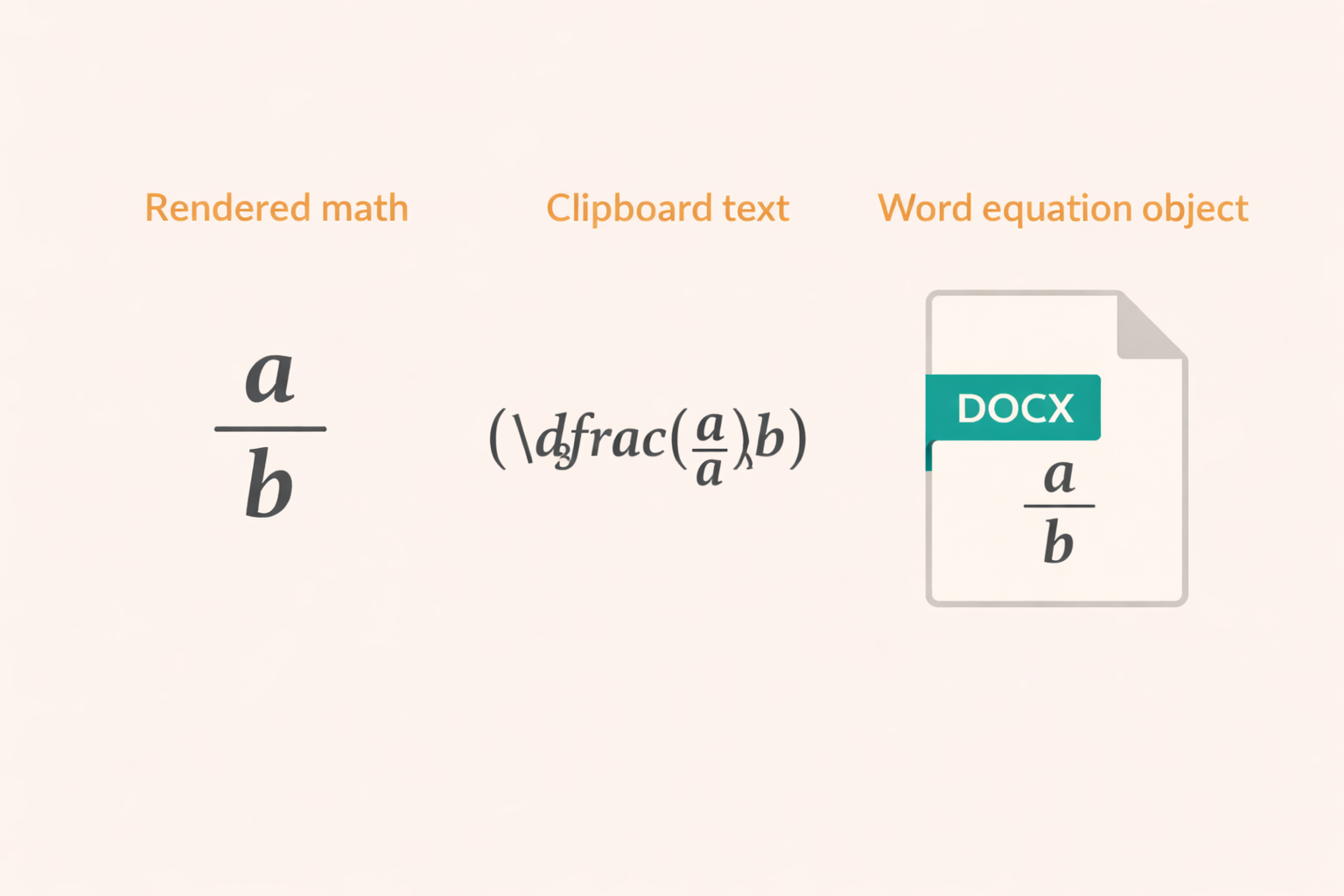
The core problem: rendering vs clipboard text
Most AI tools render equations using a math engine. That rendering can be perfect: fractions have bars, subscripts sit in the right place, and matrices align nicely.
But when you copy, the clipboard often contains:
- plain text (like
a/binstead of a true fraction) - Unicode characters that look correct but behave inconsistently in Word
- partial LaTeX without clear boundaries
- hidden characters introduced during selection/copy
Word’s native equation format is called OMML. If Word doesn’t receive math as an equation object, it will treat it as ordinary text, and you lose structure.
Typical symptoms you’ll see in Word
Here are the most common breakages:
- Fractions become linear:
\frac{a}{b}turns intoa/b - Subscripts disappear:
H2Ostays asH2Oinstead ofH₂OorH_2O - Exponents flatten:
10^{-3}becomes10-3 - Chemistry charges look wrong:
Mg2+becomes ambiguous or unreadable
If this sounds familiar, your content needs to be converted into Word-friendly math.
A workflow that works (most of the time)
This is the simplest reliable approach:
1) Keep structure in Markdown
Use headings and lists so the document reads well after export:
# Title## Section- bullet item**bold**for key terms
If you want the full structure workflow, start here: AI Text to DOCX Basics.
2) Mark equations explicitly
Equations should be clearly delimited so a converter can detect them:
- Inline:
$...$or\(...\) - Display:
$$...$$or\[...\]
Use inline math for short items inside sentences. Use display math when the equation is a full step.
3) Preview before downloading
Always check a preview before exporting. It’s faster to fix two failing formulas than to repair a broken DOCX after the fact.
AIText2Doc provides a live preview and lets you export:
- DOCX (editable equations)
- PDF (stable printing/sharing)
Try it: Open the converter app.
What to do when an equation fails
No converter can support every LaTeX construct produced by AI tools. When Preview highlights a failure:
- simplify the equation (remove custom macros)
- split a long line into multiple display equations
- rewrite units as text if punctuation causes issues (for example
10,N/kg)
For a practical list of fixes, read: Troubleshooting AI LaTeX to Word.
A note about “worksheet layouts”
Sometimes an AI outputs a worksheet-like layout using LaTeX array/tabular with \hline. This is not really an equation—it’s a table layout.
Those layouts are hard to export reliably as editable Word equations and consistent PDFs. In that case:
- export the content you can,
- then rebuild the layout using a Word table.
Summary
Word is not failing randomly—it’s just strict about what counts as a real equation. When you use explicit math delimiters and export to a DOCX that contains Word equations, your document becomes editable and stable.
Next steps: