When a math-heavy AI answer fails to export cleanly, the issue is almost never “Word is broken”. It’s usually one of these:
- the math is not clearly delimited (inline vs display)
- the copied text contains hidden characters
- the LaTeX-like syntax is incomplete or inconsistent
- a layout is being expressed as a table/worksheet (which does not export reliably)
This guide is a troubleshooting playbook: you can skim the symptom you see in Preview, apply a quick fix, and export again in the AIText2Doc app.
1) “It looks correct in ChatGPT, but pasting into Word breaks everything”
Why it happens: the chat UI is rendering math visually, but the clipboard contains plain text.
Fix: always use explicit math delimiters where possible:
- Inline:
$...$or\(...\) - Display:
$$...$$or\[...\]
If the AI output does not contain delimiters, add them around the important formulas before exporting.
2) Subscripts/superscripts disappear (H2 instead of H₂ / H_2)
Symptom: chemical formulas and powers become normal text.
Fix: move the formula into math mode and use explicit underscores/carets:
$H_2$,$CO_2$$10^{-3}$$Mg^{2+}$
If you only need one number as a subscript, keep it simple: $H_3O^+$ is more reliable than mixing text and math across multiple segments.
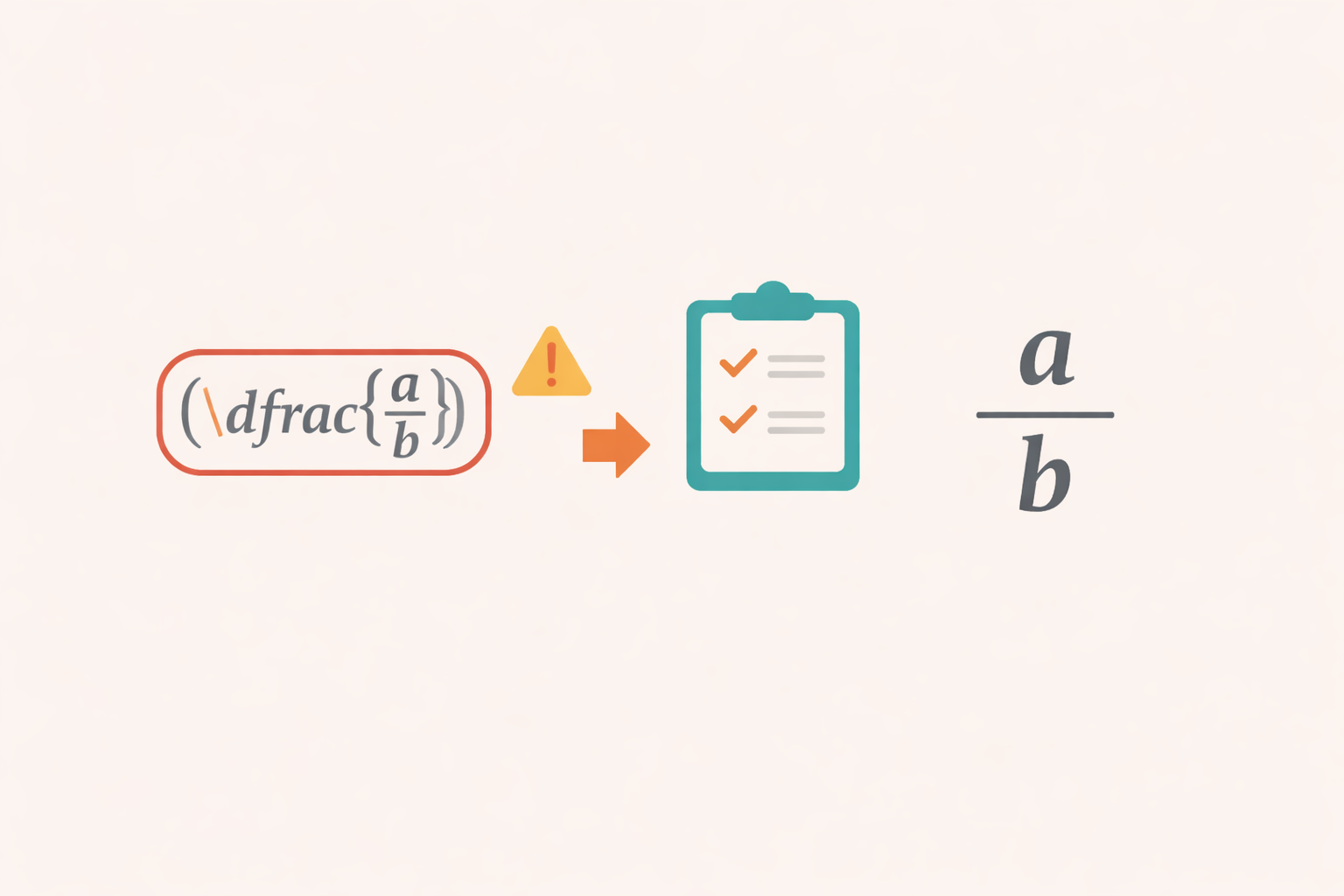
3) Fractions become linear (a/b)
Symptom: \frac{...}{...} becomes a/b, or the fraction line disappears in some outputs.
Fixes (in order):
- Ensure the fraction is in display math when it’s the main line:
$$\frac{a}{b}$$
- Avoid nested or extremely long fraction parts. Split the expression:
- first define numerator/denominator, then the fraction.
- Replace ambiguous brackets with braces:
\frac{[H_3O^+]_{eq}[A^-]_{eq}}{[HA]_{eq}}
4) Random commas appear inside equations (10,N/kg or 150,J)
Symptom: commas show up before units or before a new bracket group, even though the AI UI didn’t display them.
Why it happens: some AI copy formats use commas like spacing separators.
Fix: use a thin space \, (or rewrite units as text):
$g = 10\\,\\mathrm{N/kg}$$E = 150\\,\\mathrm{J}$- or
g = $10$ N/kg
5) Parentheses blocks are treated as equations (normal text inside parentheses breaks)
Symptom: a long sentence inside parentheses gets collapsed, spacing breaks, or the whole block is treated as math.
Fix: keep long text outside math mode. Only place the actual equation in delimiters:
- Bad:
(Cela signifie ... \Delta E_{pp}>0 ... ) - Better:
Cela signifie ... ($\Delta E_{pp}>0$) ...
If you paste a lot of “text + a few symbols” inside parentheses, disable parenthesis-math detection in the app.
6) “Worksheet layout” LaTeX (array/tabular/\hline) is flagged as not supported
Symptom: blocks like \begin{array}{r c r} or \hline are highlighted and exports are blocked.
Why: these are layout tables, not equations. Even if they render in a math engine, they don’t export reliably to editable Word equations and consistent PDFs.
What to do instead:
- Export the text and rebuild the layout using a Word table, or
- Ask the AI to output a simpler equation version (no
array/tabular), or - Replace the layout with a list of steps (one equation per line).
7) KaTeX fails but MathJax can render it
Symptom: Preview highlights an equation in red and reports a KaTeX failure.
Fix: enable the MathJax fallback option in the converter. This helps with some advanced LaTeX constructs and edge cases.
Tip: if you still have a failure, simplify the formula by removing custom macros and rewriting it with basic LaTeX primitives (\frac, ^, _, \sqrt).
8) A practical “retry loop” that saves time
When a document contains many equations, use this loop:
- Paste content.
- Scan Preview for red failures.
- Fix the first failing equation (usually the same pattern repeats).
- Re-export and repeat.
This is faster than trying to perfect the entire text before you see the failures.
Recommended next reads
- Equations from LaTeX to Word with MathML
- ChatGPT equations to Word and PDF
- Quality checklist before export
A diagnostic sequence based on real failures
Use this order instead of changing several options at once.
- Check whether the input is ordinary text, a standard equation, or a visual layout.
- Confirm the smallest failing expression in the preview.
- Compare the same expression in DOCX.
- Compare it in PDF only after preview and DOCX are correct.
- Report which stage first becomes wrong.
This isolates parser problems from Word packaging and PDF rendering problems.
Preview fails and shows raw LaTeX
Check delimiters, braces, and unsupported commands. Replace package-specific macros with standard LaTeX. If the source contains \begin{array} and \hline for worksheet presentation, the block is intentionally unsupported.
Preview works but DOCX is wrong
This usually indicates a MathML-to-OMML packaging problem. Previously reproduced examples included isotope scripts showing an empty placeholder and unordered lists becoming numbered lists. Include the generated DOCX and a minimal input when reporting this class of issue.
DOCX works but PDF is wrong
This isolates the Chromium print path. Previously reproduced PDF problems included linearized fractions, incorrect scripts, native browser headers, and content colliding with footers. The current PDF footer and pagination are generated through the Chromium rendering workflow.
Text is incorrectly treated as one equation
Long prose inside parentheses can contain smaller equations. The outer sentence must remain text. Reduce the example to one sentence and identify the exact fragments that should be mathematical.
What a useful bug report contains
- The shortest input that reproduces the problem.
- A screenshot of the expected rendering in the AI interface.
- A screenshot of the first incorrect AIText2Doc stage.
- Whether preview, DOCX, PDF, or more than one output is affected.
- Browser and Word version when relevant.
- Confirmation that the regression pack still passes.
Do not send a complete confidential worksheet when one line demonstrates the bug. The compatibility matrix provides current expected behavior and known limitations.