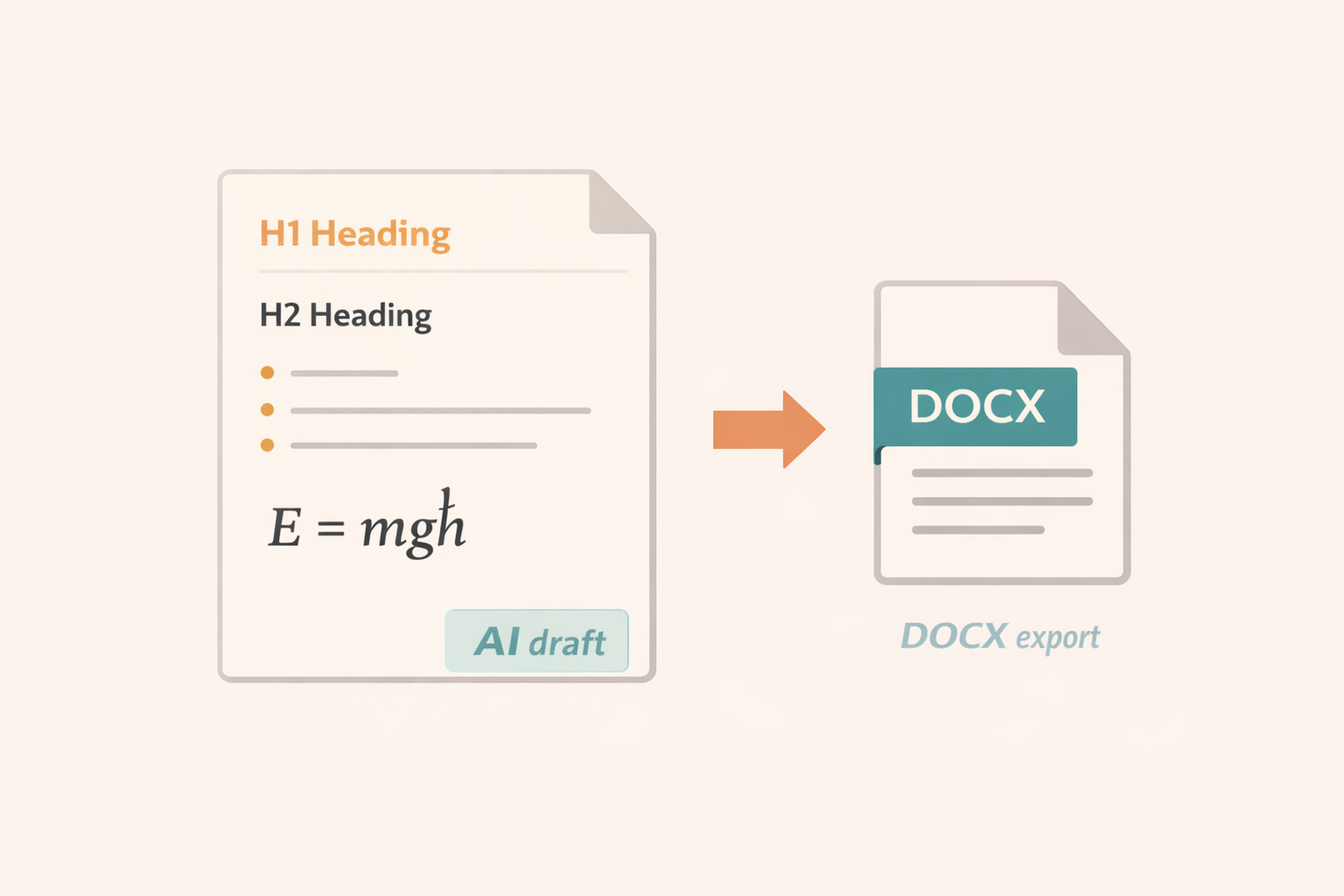
AI tools are great at drafting, but Word is strict about structure. A clean DOCX export needs consistent headings, predictable spacing, and math that survives edits. The goal is not only to look good on first open, but to stay editable after you collaborate, apply templates, and make revisions. This walkthrough covers a simple workflow that keeps AI text readable and professional in Word.
If you want to try the workflow immediately, open the AIText2Doc converter app.
1. Start with a clean input block
Before you paste anything into the converter, scan the AI output and remove noise. Delete leftover prompt instructions, duplicated sections, or markdown that does not belong in a Word document. Shorten overly long paragraphs and make sure each section starts with a clear heading. This step seems small, but it prevents messy paragraphs from becoming a long chain of manual fixes in Word.
A quick cleanup checklist:
- Remove trailing prompt text and metadata
- Break giant paragraphs into two to four sentence chunks
- Ensure headings use a consistent style
2. Mark equations clearly
Equations are where most DOCX exports break. The legacy converter expects common LaTeX style markers such as \( ... \) for inline math and \[ ... \] for display math. If your AI output mixes multiple styles, normalize them before conversion. For example, convert dollar sign math to the bracket forms. This makes equation detection more reliable and reduces the number of failures highlighted in the preview.
When you have an equation that is part of a sentence, keep it inline. When it is a full step, place it on its own line and use display math. This preserves readability and ensures spacing looks right in Word.
3. Preserve structure early
AI output often uses markdown headings or bold markers for emphasis. The converter can preserve bold markers, so use consistent patterns. If you use headings, keep them short and avoid punctuation overload. Word will respect the block structure when you add a Word style later. This makes it easier to apply a proper heading hierarchy after export.
If you need a list, keep it simple:
- Use a single level of bullets
- Avoid complex nested lists in the first pass
- Keep each bullet to one idea
4. Preview and verify
The preview pane is the most important stage. It shows how equations and bold markers are interpreted before download. Click on any equation in the preview to copy its MathML and inspect it if needed. If a math token fails, it is shown in red. This is your chance to adjust the LaTeX or toggle the MathJax fallback.
Spend two minutes in this step and you will save ten minutes in Word later. It is far faster to fix syntax in the converter than to rebuild equations by hand.
5. Export and polish
After you download the DOCX, open it in Word and apply your preferred template. Because the converter keeps text clean, this stage is mostly cosmetic: heading styles, spacing, and minor line breaks. If your document includes equations, check a few at random to confirm font alignment in Cambria Math.
A final polishing checklist:
- Apply Word heading styles to each section
- Normalize line spacing and paragraph spacing
- Run a quick spell check and consistency pass
A repeatable habit
Once you follow this workflow a few times, it becomes a predictable routine. AIText2Doc helps keep the pipeline short and stable: clean input, clear math markers, reliable preview, and a DOCX that edits well. If you need extra controls or templates, watch the roadmap and share feedback so future updates prioritize your workflow.
Related reading: